To safely clean your electronics like keyboards, screens, and remotes, start by powering off and unplugging them. Use a microfiber cloth dampened with a mix of distilled water and isopropyl alcohol for screens and surfaces. For keyboards, use compressed air to remove debris and clean between keys with a cotton swab. Always avoid harsh chemicals and never submerge devices. Keeping them clean helps reduce germs and maintain performance. There are more tips to maximize your cleaning routine.
Preparing Your Electronics for Cleaning
Before you start cleaning your electronics, it’s essential to prepare them properly. First, power off and unplug your devices to prevent any electrical hazards during the cleaning process. This step is vital for safe cleaning.
Next, gather all necessary cleaning supplies, like microfiber cloths, distilled water, and isopropyl alcohol. Having the right tools on hand will make your job easier.
Gather essential cleaning supplies such as microfiber cloths, distilled water, and isopropyl alcohol to simplify your cleaning process.
To improve visibility of dirt and smudges, turn off the screen or device, so you can spot areas needing attention. Remember to take your time while cleaning; rushing can lead to missed spots or residue.
Finally, always check the manufacturer’s guidelines for specific instructions to avoid voiding warranties or damaging your electronics. Additionally, consider using non-toxic cleaners to ensure a safe and effective cleaning process for your devices.
How to Clean Computer Screens
To keep your computer screen looking its best, make daily dusting a habit. A quick wipe with a dry microfiber cloth can remove fingerprints and smudges.
For a deeper clean, set aside time each week to follow proper cleaning techniques. Additionally, using natural solutions can help maintain a streak-free finish while minimizing chemical exposure.
Daily Dusting Techniques
Cleaning your computer screen daily is essential for maintaining clarity and preventing dirt buildup.
Start by turning off and unplugging your device to guarantee safety. Use a dry microfiber cloth to gently dust the screen, removing any loose particles.
If you notice stubborn smudges, dampen another microfiber cloth with distilled water or a dedicated cleaning solution. Wipe the screen gently in a circular motion to avoid streaks.
Be cautious and never apply cleaning solutions directly to the screen, as this can lead to damage. Avoid using glass cleaners with ammonia or bleach, since they can ruin screen coatings.
Weekly Deep Cleaning Steps
Regular dusting keeps your computer screen clear, but a weekly deep clean can make a significant difference in its appearance and longevity.
Start by turning off and unplugging your device to prevent any electrical issues. Grab a microfiber cloth and dampen it with distilled water or a mixture of 50% isopropyl alcohol and 50% distilled water.
Gently wipe the screen using an S pattern, starting from the top and working your way down. This technique guarantees even coverage and minimizes streaks.
Don’t forget to clean around the edges of the screen, as dust often collects there. Always check the manufacturer’s instructions for any specific cleaning recommendations to protect your screen’s coatings.
Your screen will thank you for the care!
How to Clean Keyboards

Keeping your keyboard clean is essential for both hygiene and performance. Start by turning off and unplugging the keyboard.
Use a microfiber cloth dampened with a 50/50 mixture of rubbing alcohol and distilled water to gently clean the keycaps and surface. For a deep clean, remove the keycaps with a wire keycap puller and soak them in a gentle soap solution for at least 30 minutes.
- Utilize compressed air to blow out debris from between keys and around ports.
- Regularly wipe down the keyboard with a dry microfiber cloth to prevent dirt buildup.
- Always clean over a trash can to catch any loose particles.
Incorporating time-saving strategies into your cleaning routine can make maintaining your keyboard even easier.
These steps keep your keyboard functioning well and looking fresh!
How to Clean Remote Controls
Cleaning your remote control is easier than you think, and having the right tools makes all the difference. Follow a simple step-by-step process to guarantee it’s disinfected and functioning well. Plus, regular maintenance tips will help keep your remote in top shape for longer. Incorporating eco-friendly cleaning solutions can enhance your remote cleaning routine while being gentle on the environment.
Essential Cleaning Tools
When it comes to maintaining your remote control, having the right tools at your disposal makes all the difference. To effectively clean your electronic device, gather these essential items:
- Microfiber cloth: This helps you wipe surfaces without scratching.
- Isopropyl alcohol: A safe disinfectant for cleaning without damage.
- Cotton swabs: Perfect for reaching tight crevices and between buttons.
Before you start, remember to remove the batteries to guarantee safety.
Dampen the microfiber cloth with isopropyl alcohol to clean the remote’s surfaces, and use cotton swabs for those hard-to-reach areas.
Regular cleaning is vital to maintain functionality and reduce the spread of germs, so keep these tools handy for quick touch-ups!
Step-by-Step Cleaning Process
Start by ensuring your safety: remove the batteries from the remote control.
Next, grab a microfiber cloth dampened with isopropyl alcohol. Wipe down the surface of the remote, paying special attention to high-touch areas like buttons and the screen for effective disinfection.
For those tricky crevices between buttons, use cotton swabs dipped in the alcohol solution to clean out any dirt or grime.
Remember, avoid submerging the remote in any cleaning solutions, as moisture can damage internal components; stick to that lightly dampened cloth.
Once you’ve finished cleaning, allow the remote to dry completely before re-inserting the batteries. This helps prevent any potential damage from moisture, keeping your remote in top shape.
Maintenance Tips for Longevity
After you’ve cleaned your remote control and verified it’s free of dirt and germs, it’s important to establish a regular maintenance routine to keep it in great shape.
Aim to clean your remote at least once a week, especially with multiple users in the household. Use a microfiber cloth dampened with isopropyl alcohol to wipe down the surfaces, ensuring you follow proper cleaning instructions. For a deeper clean, utilize cotton swabs to reach crevices between buttons.
- Remove batteries before cleaning to prevent damage.
- Let the remote dry completely before reinserting batteries.
- Keep the remote in a designated spot to avoid spills and dirt.
This way, you’ll maintain hygiene and functionality for longer.
Cleaning Game Consoles and Controllers
Cleaning your game consoles and controllers is essential for maintaining their performance and longevity.
Start by powering off your console and using a dry microfiber cloth to dust off the exterior. For surfaces, dampen a microfiber cloth with water and gently wipe them down.
If you encounter hard-to-reach areas, use a cotton swab with water to clean the crevices, but avoid cutouts to prevent damage.
Before cleaning your controllers, turn them off, and mix one part water with isopropyl alcohol to disinfect the surfaces effectively. Regular disinfection reduces harmful bacteria and is crucial for keeping your gaming environment safe.
It’s also a good idea to regularly wipe controllers with disinfecting wipes to eliminate germs and residue.
After cleaning, allow everything to dry completely before turning them back on to guarantee peak performance.
Tips for Maintaining Your Devices
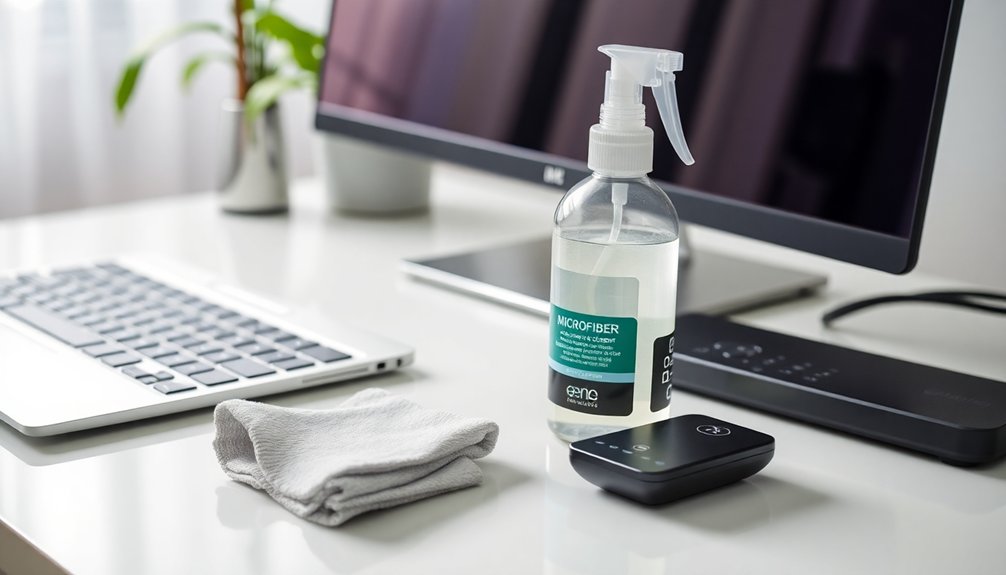
To keep your devices in top shape, it’s essential to implement a regular maintenance routine. Dedicate at least 30 minutes each week to thoroughly clean your electronics.
Implement a weekly maintenance routine to ensure your devices remain clean and perform optimally. Dedicate just 30 minutes for thorough cleaning.
- Use a microfiber cloth and compressed air to clean your keyboard and mouse, preventing dust buildup that can affect performance.
- For screens, dampen a microfiber cloth with distilled water or a screen cleaner, avoiding harsh chemicals that can damage surfaces.
- Don’t forget your remotes! Wipe them down with isopropyl alcohol on a microfiber cloth, and use a cotton swab to reach between buttons where germs can linger.
Also, store your devices in a clean, dry place to keep them functional and hygienic. Regular maintenance helps guarantee your devices last longer and perform better, while also minimizing the spread of germs that can accumulate on surfaces.
Recommended Cleaning Supplies
Maintaining your devices goes hand in hand with using the right cleaning supplies. Start with a microfiber cloth, which effectively cleans screens and surfaces without scratching. Before using it, make sure it’s clean and free from debris.
For disinfecting, opt for 70% isopropyl alcohol wipes or create a gentle solution of 70% rubbing alcohol mixed with 30% water. When cleaning keyboards and ports, use compressed air cans to blow out debris and maintain performance.
Always avoid abrasive materials like paper towels, as they can leave lint and scratches. Additionally, steer clear of harsh chemicals such as ammonia or bleach, which can damage protective coatings. Stick to soap and water if you need a gentle clean that’s safe for electronics. Incorporating eco-friendly cleaning agents into your routine can also help maintain the integrity of your devices.
Best Practices for Electronics Care
Proper care for your electronics can greatly extend their lifespan and enhance performance.
Always power off and unplug your devices before cleaning to guarantee safety. Use a microfiber cloth lightly dampened with distilled water or a recommended cleaning solution to wipe screens and surfaces, avoiding excess moisture.
For keyboards and remotes, use compressed air to dislodge debris, and clean crevices with cotton swabs dipped in alcohol for thorough disinfection.
- Incorporate routine cleaning into your maintenance schedule.
- Aim for quick cleans weekly and deeper cleans monthly.
- Avoid abrasive materials like paper towels or harsh chemicals to prevent scratches.
Incorporating time-saving cleaning hacks can help streamline your electronics cleaning routine.
Following these instructions for cleaning will keep your electronics looking and performing their best.
Conclusion
Cleaning your electronics doesn’t have to be intimidating. Just like wiping away dust from a cherished painting, a little care goes a long way in keeping your devices looking and functioning their best. By following the steps outlined above, you can protect your investments and enjoy a cleaner, more efficient tech experience. Remember, regular maintenance is key. So, grab your supplies and give your electronics the attention they deserve!